
Buying a brand new Android smartphone is an exciting moment for anyone in Pakistan. Whether you just upgraded to a smooth 120Hz display, a faster processor, or a phone with better camera quality, setting up your new device feels great.
However, one major headache remains for almost every user: How to WhatsApp transfer to new phone without losing your valuable chats, photos, audio notes, and videos.
WhatsApp is the most popular messaging app in Pakistan. We use it every day for work, family groups, college assignments, and business orders. Losing your chat history can mean losing important contacts and memories.
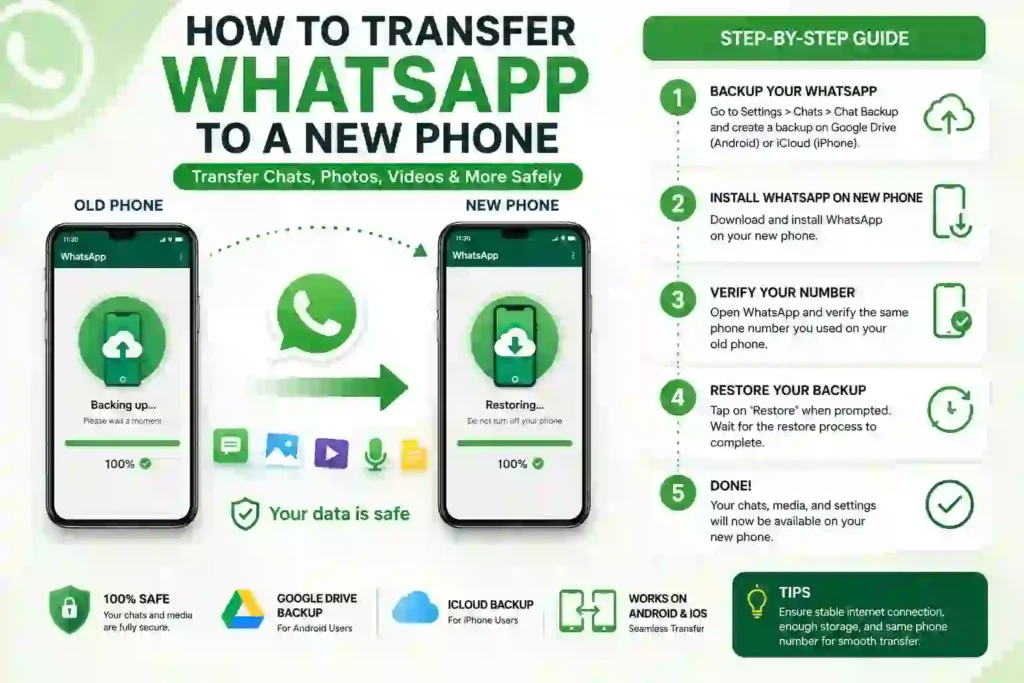
The good news is that WhatsApp transfer data is now faster and easier than ever before. You do not need to be a technical expert or pay a phone technician at your local mobile market.
In this comprehensive guide from getapkmods.com, we will show you 3 awesome methods to WhatsApp transfer messages and media to your new Android phone smoothly.
Table of Contents
Important Things to Check Before You Begin
Before you start WhatsApp transfer chat history, you must complete a quick checklist. Preparing your devices properly prevents transfer errors, stuck percentage bars, or accidental data loss.
Pre-Transfer Checklist:
- Same Phone Number: Make sure you are using the same mobile number on your new phone.
- Charge Both Phones: Ensure both old and new phones have at least 70% battery or connect them to a charger.
- Turn On Wi-Fi and Location: Keep Wi-Fi and Bluetooth toggled on for both devices.
- Update WhatsApp: Update WhatsApp to the latest version on your old device via the Google Play Store or trusted APK download sites.
- Do Not Delete Old Data: Never delete WhatsApp or reset your old phone until your chats appear safely on your new screen.
Method 1: Direct QR Code Chat Transfer (Fastest & No Cloud Needed)
WhatsApp now features an official direct Chat Whatsapp Transfer tool. This feature lets you transfer your full account, including personal messages, images, voice notes, and documents, directly between two Android devices over a private Wi-Fi connection.
You do not need to upload gigabytes of data to Google Drive first. This is ideal for Pakistani users who want to save their mobile data packages!
Steps on Your Old Android Phone:
- Open WhatsApp on your old phone.
- Tap the three vertical dots in the top right corner.
- Go to Settings > Chats.
- Scroll down and select Transfer chats.
- Tap Start and grant local location and Wi-Fi permissions.
- Your old phone will open a built-in QR code scanner screen.
Steps on Your New Android Phone:
- Download and install WhatsApp on your new phone.
- Open the app, select your language, and tap Agree and continue.
- Enter your same phone number and verify it via SMS or phone call.
- When prompted to restore or transfer chats, select Transfer from old phone.
- Tap Continue to display the unique QR code on your new phone screen.
- Use your old phone camera to scan the QR code on your new phone.
- Tap Accept on your new phone to link both devices.
Keep both phones side-by-side, unlocked, and connected. A percentage bar will display the progress. Once it reaches 100%, your full chat history will load instantly on your new phone!
Method 2: Google Drive Backup & Restore (Traditional Method)
If your old phone is running slightly older software or if you prefer keeping a secondary cloud backup, the classic Google Drive Backup method works reliably every time.
This method uploads your chat database and media to your Google Account. You then pull that backup down onto your new device during the fresh setup process.
Step 1: Create a Google Drive Backup on Old Phone
- Open WhatsApp on your old phone.
- Tap Settings > Chats > Chat backup.
- Under Google Account, make sure your active Gmail account is connected.
- If you want to include videos, toggle on Include videos (Note: this increases file size).
- Tap the green Back Up button and wait until the upload reaches 100%.
Step 2: Restore the Backup on New Phone
- Ensure your new Android phone is signed into the same Google Account.
- Install WhatsApp on your new phone.
- Open WhatsApp and verify your phone number.
- WhatsApp will automatically scan Google Drive and detect your recent backup.
- Tap Restore when prompted.
- Wait for your text messages to restore first, followed by media files downloading in the background.
- Enter your profile name and enjoy your chats!
Pro Tip for Android Fans: Looking for useful Android customization tools, productivity utilities, or trending games? Check out our partner platform at apkzilla.store to discover clean APK files and essential Android mobile utilities.
Method 3: Transfer WhatsApp from iPhone to Android
Switching from an Apple iPhone to an Android phone like Samsung, Xiaomi, Vivo, OPPO, or Infinix? WhatsApp transfer is now an official cross-platform.
What You Need:
- A USB-C to Lightning cable (or a standard type-C to type-C cable depending on your iPhone model).
- Your new Android device on the initial setup screen.
- WhatsApp installed on your iPhone.
How to Execute the Whatsapp Transfer :
- Turn on your new Android phone and start the initial device setup.
- When the screen prompts you to Copy apps and data, connect your iPhone and Android phone using the cable.
- Trust the connection on your iPhone screen.
- Select WhatsApp from the list of apps to transfer.
- Scan the QR code shown on your Android screen using your iPhone camera.
- Tap Start on your iPhone to export your WhatsApp data.
- Finish the phone setup, open WhatsApp on Android, and verify your phone number.
Comparison of WhatsApp Transfer Methods
To help you decide which approach suits your current setup, here is a quick comparison table:
| Feature / Detail | QR Code Direct Transfer | Google Drive Backup | iPhone to Android Transfer |
| Transfer Speed | Super Fast (Local Wi-Fi) | Depends on Internet Speed | Fast (Cable Transfer) |
| Internet Data Usage | Very Low / Zero Internet | High (Uploads & Downloads) | Zero Internet (Cable) |
| Required Tools | Both phones nearby | Google Account & Storage | USB Cable Adapter |
| Transfers Media? | Yes (Photos, Videos, Audio) | Yes (If selected) | Yes |
| Best For | Android to Android users | Cloud backup lovers | iPhone switchers |
Troubleshooting Common Transfer WhatsApp Transfer Problems
Sometimes technical glitches happen. If your WhatsApp transfer gets stuck or fails midway, do not panic! Your original chat data remains safe on your old phone.
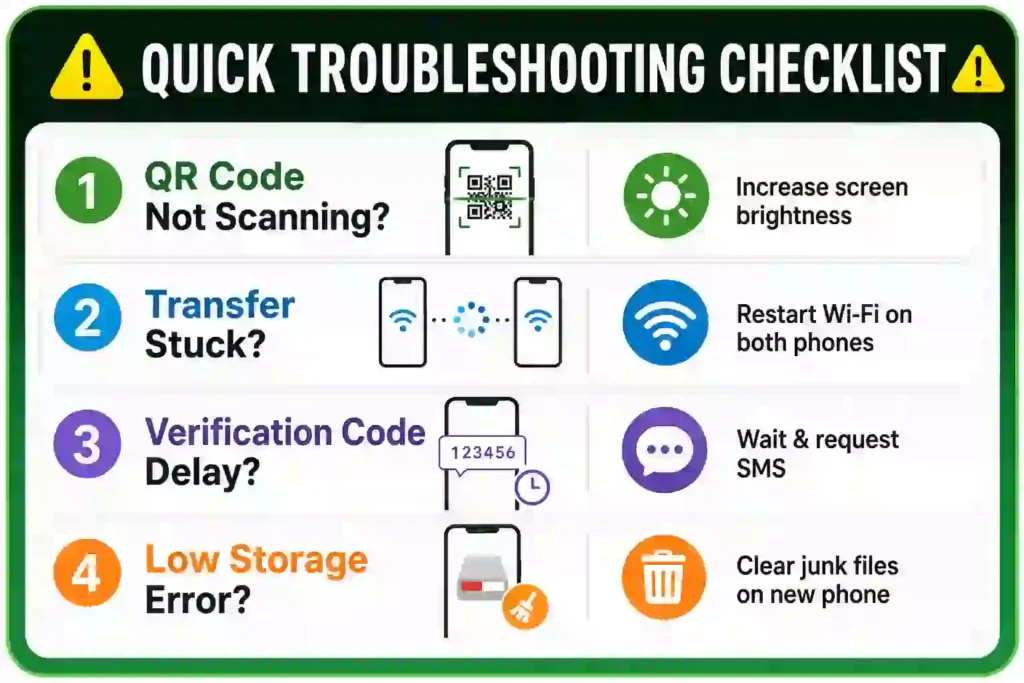
1. The QR Code Will Not Scan
If your old phone camera struggles to scan the code on your new screen:
- Increase the screen brightness on your new phone to maximum.
- Clean your old phone camera lens gently.
- Hold the phones about 6 to 8 inches apart under good room lighting.
2. Transfer Gets Stuck at 99% or Fails
If the progress bar freezes:
- Cancel the transfer on both phones.
- Restart both Android devices.
- Make sure both phones are connected to the same Wi-Fi router or personal hotspot.
- Turn off Battery Saver Mode on both phones, as it can kill background Wi-Fi tasks.
3. Insufficient Internal Storage Error
WhatsApp chat backups containing years of photos and high-definition video clips can exceed 5 GB or 10 GB. If your new phone displays a storage warning, delete unnecessary large files or old videos on your old phone before initiating the transfer process.
Frequently Asked Questions (FAQs)
Will I lose my WhatsApp group chats during the transfer?
No! When you WhatsApp transfer your account, all individual chats, group memberships, profile pictures, and media files move over completely.
Can I WhatsApp transfer using a new phone number?
No. You must first change your phone number on your old phone inside WhatsApp settings (Settings > Account > Change number) before starting the transfer to your new device.
What happens to WhatsApp on my old phone after the transfer?
Once your account is verified and restored on your new phone, your old phone will automatically log out of WhatsApp. Your chats will remain visible on your old device until you clear the app data or uninstall it.
Does WhatsApp transfer move call history?
Yes. Your full voice call and video call logs will move over seamlessly along with your regular chat threads.
Is the direct QR code transfer free to use?
Yes! The direct transfer feature is a 100% free built-in tool provided directly inside official WhatsApp software.
Final Thoughts
Learning how to transfer WhatsApp to new phone does not have to be stressful. Thanks to WhatsApp’s direct QR code transfer feature, moving your chat history takes only a few minutes without consuming your mobile data allowance!
Simply follow the step-by-step instructions outlined above, double-check your pre-transfer checklist, and keep your old phone active until the transfer completes successfully.
For more helpful Android tips, app guides, and game tutorials, keep exploring getapkmods.com — your ultimate hub for Android apps and games in Pakistan!
If you are setting up a new smartphone or troubleshooting app errors, downloading the clean setup file manually is often the quickest fix. You can grab the latest WhatsApp APK download directly from our verified repository to enjoy fast messaging, crystal-clear voice calls, and secure chat backups on any Android phone.