
Table of Contents
Android apps are usually installed through Google Play, but some apps and games are distributed as APK, XAPK, or split APK files. Installing them manually can be useful when an app is unavailable in your region, you need a particular version, or a game requires additional files.
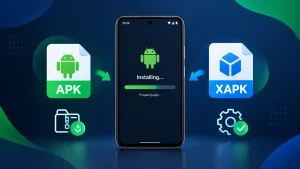
However, these formats are not identical. An APK is a standard Android installation package, while an XAPK is a distribution format that may contain an APK, additional game data, or multiple split APK files. Choosing the correct installation method helps prevent errors and failed installations.
This guide explains how to install APK and XAPK files on Android, including a manual method for XAPK files that do not install by tapping them.
What Is the Difference Between APK, XAPK, and APKS?
Before installing a downloaded file, identify its format.
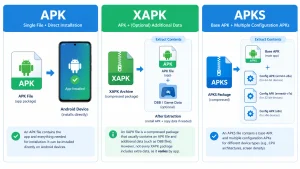
- APK: The standard Android application package. In most cases, you can install it by opening the file and following the installation prompts.
- XAPK: A package format commonly used to distribute an APK together with additional data or split APK components. Android does not natively install every XAPK file by simply tapping it.
- APKS: A collection of APK files, often containing a base package and configuration splits for a particular device.
- Split APKs: Separate APK components that work together as one application. Installing only the base APK may not be sufficient.
If you are downloading a game, check whether the package includes additional files before starting installation. This can help you avoid missing-data errors or an app that closes immediately after launch.
How to Install an APK File on Android
Installing a standard APK is usually straightforward.
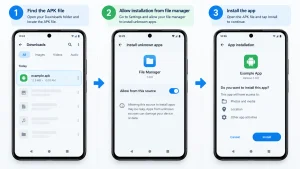
- Download the APK file from a source you trust.
- Open your file manager and navigate to the Downloads folder.
- Tap the downloaded APK file.
- If Android blocks the installation, open the settings option shown on the screen and allow your file manager or browser to install unknown apps.
- Return to the APK file and tap it again.
- Select Install and wait for the process to finish.
- Tap Open to launch the app.
The exact wording and location of the permission may differ between Android versions and manufacturers. On many devices, you can find it under Settings → Apps → Special app access → Install unknown apps.
Allow this permission only for the app you are using to install the file. You can turn it off again afterward.
How to Install an XAPK File
An XAPK file may contain more than one component, so the installation method depends on its contents. There are two main approaches: using a compatible installer or extracting the package manually.
Method 1: Use a Compatible XAPK Installer
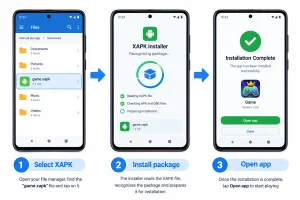
This is generally the easier option for users who do not want to handle package components themselves.
- Download the XAPK file from a trusted source.
- Install a reputable installer that explicitly supports the XAPK format and the package structure you downloaded.
- Open the installer and locate the XAPK file.
- Follow the installer’s instructions to install the application and any required components.
- If Android asks for permission to install unknown apps, grant it to that installer.
- Wait for installation to complete, then open the app.
Not every installer supports every package format. Review the installer’s permissions and reputation before using it, and avoid tools that request unrelated access.
Method 2: Manually Install an XAPK File
You can inspect and extract an XAPK file using a file manager or archive utility that supports ZIP files. This method is useful when you want to understand what the package contains, but the next steps depend on the extracted files.
Step 1: Find the downloaded XAPK
Open your file manager and go to the folder where you saved the XAPK file, usually Downloads. If possible, make a copy of the original file before modifying anything.
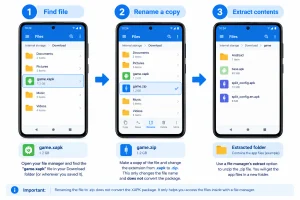
Step 2: Extract the XAPK
Some file managers can open an XAPK as an archive directly. If yours cannot, try this:
- Make a copy of the XAPK file.
- Rename the copy from
.xapkto.zip. - Open the renamed file with a compatible archive utility.
- Extract its contents into a new folder.
Renaming the extension does not convert the package into a different format; it simply allows some archive tools to recognize it. If the file cannot be opened or extracted, it may use a structure your tool does not support, or the download may be incomplete.
Step 3: Check the extracted files
Look at the files and folders inside the extracted directory. You may find a single APK, several APK files, an Android folder, or a combination of these.
The correct installation procedure depends on what you find.
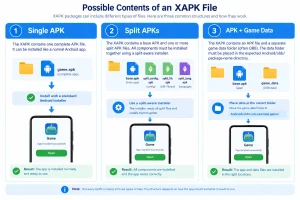
Case A: The folder contains one complete APK
If there is a single APK intended to work independently, tap it and install it as you would any other APK. Allow installation from your file manager if Android requests permission.
Case B: The folder contains base.apk and other APK files
You may see files such as base.apk, split_config.arm64_v8a.apk, or split_config.xxhdpi.apk. These can be parts of one split application package.
Do not assume that installing base.apk alone will work. The application may require additional configuration splits, and the required components depend on the package and your device.
Use an installer that supports split APK installation and select the complete set of required APKs together. Alternatively, if you have a computer and Android Debug Bridge (ADB) configured, the Android command-line tools can install multiple APKs as one application:
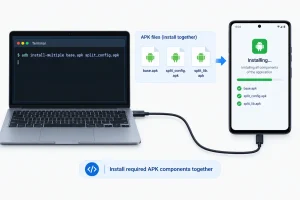
adb install-multiple base.apk split_config.arm64_v8a.apk split_config.xxhdpi.apk
This is an example, not a universal command for every XAPK. Replace the example filenames with the actual required files from your package, and include all necessary components. ADB must be installed and configured, and USB debugging must be enabled when using a connected device. Do not use this command if you cannot identify the required APK components.
Case C: The folder contains an OBB folder or additional game data
Some games include an OBB data folder in addition to their APK. If the package requires OBB data:
- Install the game’s APK or required APK components first.
- Locate the OBB data in the extracted files.
- Copy the data into the following location on your device, preserving the original folder structure:
Internal storage/Android/obb/<package-name>/ - Replace
<package-name>with the actual package directory name supplied by the game files. - Open the game and check whether it loads correctly.
Not every game uses OBB files. Some use other storage arrangements, and Android versions or device manufacturers may restrict access to certain folders. Do not move files into an arbitrary directory or rename folders without knowing the expected structure.
Step 4: Launch and test the application
Once installation and any required data placement are complete, open the app. If it reports missing files, closes immediately, or remains stuck on a loading screen, recheck the package structure and confirm that all required components match.
Manual installation will not work for every XAPK. If the package contains unsupported components or its structure is unclear, use a compatible installer or obtain a standard package intended for your device.
How to Install APKS or Split APK Files
APKS and split APK packages require extra care because the files may represent different parts of a single app.
- Extract the archive if necessary.
- Identify the base APK and the configuration splits.
- Use a reputable split-APK installer that supports the package format.
- Select the required files together and follow the installer’s instructions.
Do not install random APK files from the same folder individually. A split package may include device-specific configurations for CPU architecture, screen density, or language. Installing an incomplete or incompatible set can cause installation errors or prevent the app from starting.
How to Fix Common APK and XAPK Installation Errors
If installation fails, check the following possible causes.
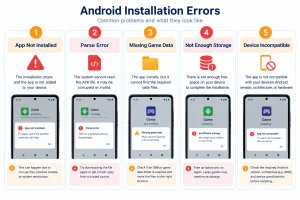
App Not Installed
The APK may be incompatible with your Android version, the download may be incomplete, or an existing app may conflict with the package signature. Download a fresh copy from a trusted source and check the app’s requirements.
Parse Error
A parse error can occur when the package is damaged, uses unsupported features, or is incompatible with the device. Confirm that the file downloaded completely and that it is the correct package for your Android version.
App Keeps Crashing
For XAPK games, check whether all required split APKs or data files were installed. Also verify that the package supports your device’s processor architecture and Android version.
Installation Is Blocked
Android may require permission for the specific browser or file manager used to open the APK. Enable the permission only for that trusted source, retry the installation, and disable it afterward if you no longer need it.
Not Enough Storage
Make room for both the downloaded archive and the installed application. Extracting an XAPK may temporarily require additional space because the original archive and its extracted files can exist simultaneously.
App Conflicts With an Existing Version
An app may refuse to update if the downloaded package has a different signing certificate from the installed version. Back up important data first. Uninstalling the existing app may remove its local data, so do not do this unless you understand the consequences.
Is It Safe to Install APK and XAPK Files?
Manual installation can expose your device to malicious or modified applications if you download packages from unreliable sources. A familiar filename or a working installation does not prove that a file is safe.
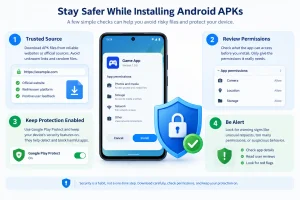
Use these precautions:
- Download files from official developers or sources you have a reason to trust.
- Check the app name, developer, version, and requested permissions before installing.
- Avoid packages that ask for unnecessary access to contacts, messages, accessibility features, or other sensitive functions.
- Keep Google Play Protect enabled where available.
- Do not disable Android’s security protections just to force an installation.
- Be careful with modified APKs, because changes to an app can introduce security and privacy risks.
For more information, read Google’s guidance on installing apps from other sources and Android’s documentation on alternative app distribution.
If you are unsure about a package, the safest choice is to use the official version from Google Play or the developer’s own website.
Frequently Asked Questions
1. Can I install an XAPK file directly on Android?
Not always. Android’s standard package installer does not natively handle every XAPK format. You may need a compatible installer or have to extract the file and install its components correctly.
2. Can I convert XAPK to APK by renaming it?
No. Renaming .xapk to .apk does not convert the package. You may be able to rename a copy to .zip to inspect its contents, but the extracted files still need to be installed according to their structure.
3. Why does an XAPK contain multiple APK files?
It may include a base APK and configuration splits required for a particular device, such as CPU architecture or screen density. Those components may need to be installed together.
4. What is the Android/obb folder used for?
Some games use OBB files to store additional data. When a game requires them, the data must be placed in the expected package directory. Other apps may not use OBB files at all.
5. Why does my game open and then close?
The package may be incomplete, required data may be missing, or the game may not support your Android version or device hardware. Recheck the installation and the developer’s requirements.
6. Do I need to root my phone to install APK or XAPK files?
No. Standard APK installation and many XAPK installation methods do not require root access. Some advanced file operations may be restricted by Android, but rooting is not a normal requirement for installing apps.
7. Can I install an older version of an app?
Sometimes. The older package must be compatible with your device, and Android may block installation if it conflicts with a newer version or has a different signature. Back up important data before replacing an existing app.
8. Is it safe to enable “Install unknown apps”?
It can be appropriate when you trust the source and understand the risks. Grant the permission only to the browser, file manager, or installer you need, and disable it when it is no longer required.
9. Why does Android say the app is incompatible?
The package may require a newer Android version, a particular processor architecture, or other device features. Check the app’s stated requirements and make sure you downloaded the correct package variant.
10. Should I delete the XAPK after installation?
You can usually delete the original archive after confirming that the app works and all required data has been installed. Keeping it temporarily can be useful if you need to troubleshoot or reinstall the app.
Final Thoughts
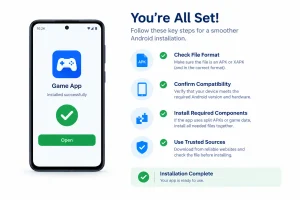
Installing an APK is usually a simple process, but XAPK and split APK files require you to identify the package contents first. A compatible installer is often the easiest approach, while manual extraction can help when you need to distinguish a single APK from split components or additional game data.
The key is to install all required components, preserve the expected data structure, and use packages from sources you trust. If a file does not install correctly, check compatibility and package integrity rather than disabling Android’s security protections.
For Android apps and games, explore the relevant categories and guides on GetAPKMods before choosing a package for your device.